Installation
Add-in store in Excel
Click on the
Add-insbutton in Excel. Usually, it is located on theHometab, but if you are using an older version of Excel, it could be on theInserttab.Search for
xlwingsClick on
Addto install.
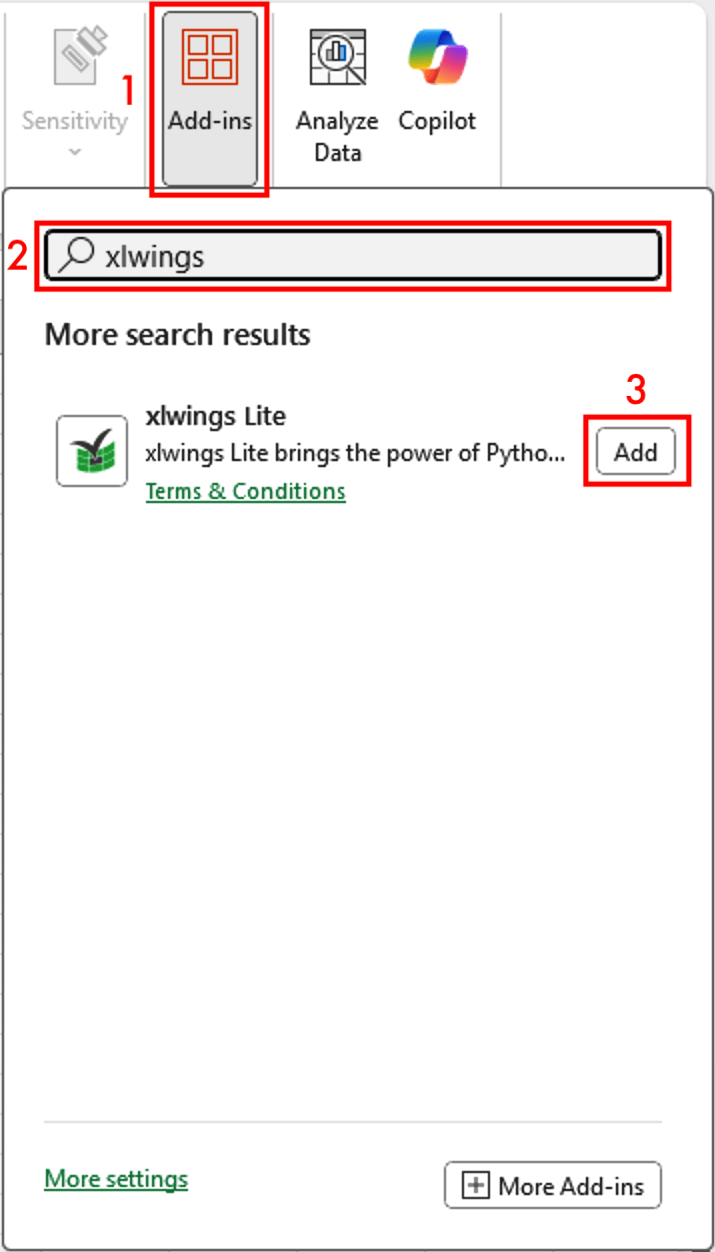
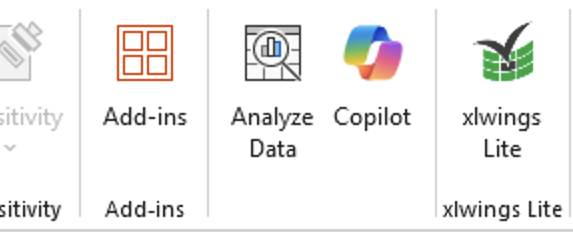
This will add an xlwings Lite button at the right end of the Home tab and open the xlwings Lite editor on the right-hand side of Excel. If the editor doesn’t show or if you closed it, you can reopen it anytime by clicking the xlwings Lite button on the Home tab:
Uninstalling xlwings Lite
To uninstall xlwings Lite, start again by clicking on the Add-ins button, then click on More Add-ins at the bottom of the appearing menu. Under Manage your Apps, you’ll find xlwings Lite. Click on the three dots to the right and select Remove.
On older versions of Excel, you have to go to My Add-ins instead of Manage your Apps, then hover over xlwings Lite, which makes the three dots appear.
Corporate Environments
In corporate environments, your Excel add-in store may be blocked. In this case, ask your IT or Office administrator to install xlwings Lite from the Office 365 Admin Center. Alternatively, your company may prefer to self-host xlwings Lite (see Self Hosting).