Files
xlwings Lite allows you to work with local files in two ways:
Import/Export: store files inside the add-in via drag and drop (all platforms).
Local Folders: mount folders from your computer (desktop Excel on Windows only).
Important
For performance and security reasons, only share the files and folders that your code needs. Mounting or importing too many files can slow things down. Also, keep in mind that any code you run can access every file you share with the add-in.
Import/Export
Go to xlwings Lite menu > Files > Import/Export to import and export files and folders. Files that you import are available in Python under /data, and any files that your Python code writes to /data show up here for download:
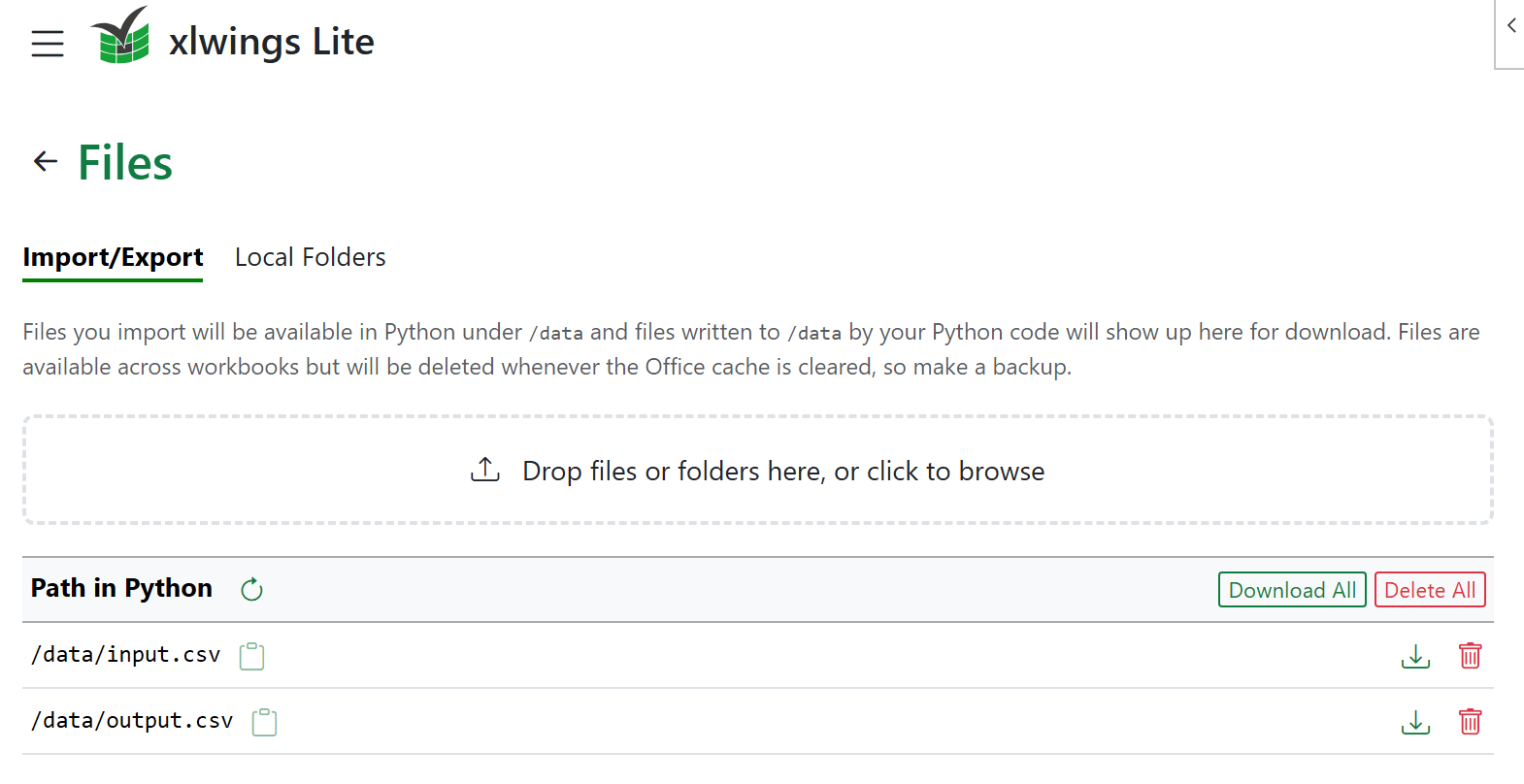
For example, to read an imported file called input.csv:
import pandas as pd

df = pd.read_csv("/data/input.csv")
And to write a file that will then appear in the Import/Export list:
df.to_csv("/data/output.csv")
You can drop files or entire folders onto the drop zone. If you upload folders, their paths are preserved, such as /data/my/folder/. Each file can be downloaded or deleted individually, and you can also Download All (as a ZIP file) or Delete All.
Note
Files will be deleted from xlwings Lite whenever the Office cache is cleared, so make sure to keep a backup.
Local Folders
Note
Local Folders are only supported with desktop Excel on Windows. On other platforms, use Import/Export instead.
Instead of importing individual files, you can mount a folder from your computer. Once mounted, your Python code can read and write files in that folder directly on your computer. A mounted folder is accessible across workbooks and survives restarts of xlwings Lite.
To mount a folder, go to xlwings Lite menu > Files > Local Folders:
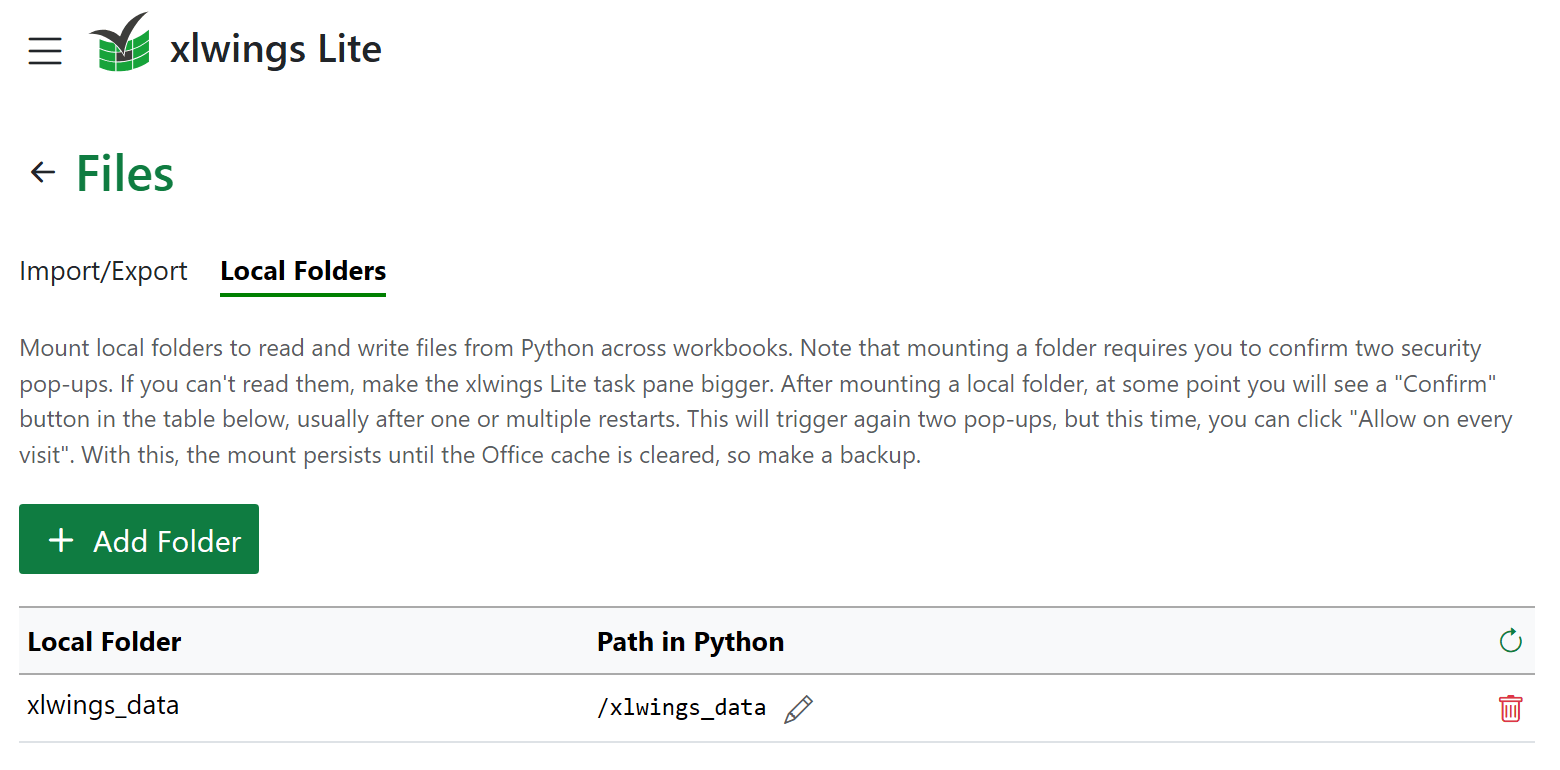
Now click on Add Folder. Mounting a folder requires you to confirm two security pop-ups (if you can’t read the security pop-ups, make the xlwings Lite task pane bigger):

By default, a folder is mounted at a path based on its name, but you can rename the mount path by clicking the pencil icon. For example, if you mount a folder under /xlwings_data, you can access its files like this:
import pandas as pd

df = pd.read_csv("/xlwings_data/input.csv")
df.to_csv("/xlwings_data/output.csv")
When a folder is mounted under /data, the Import/Export tab is disabled to avoid conflicts.
You may need to re-authorize mounted folders after restarting xlwings Lite or occasionally thereafter. xlwings Lite will notify you when re-authorization is required:
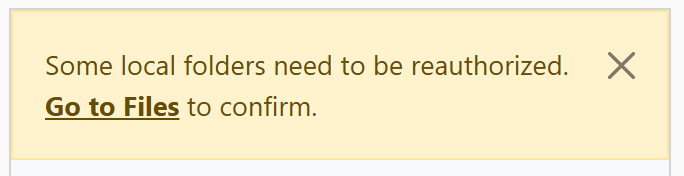
Under Files > Local Folders, click on Confirm for the corresponding mount:

As with adding the mount, this will trigger two (in this case identical) prompts:
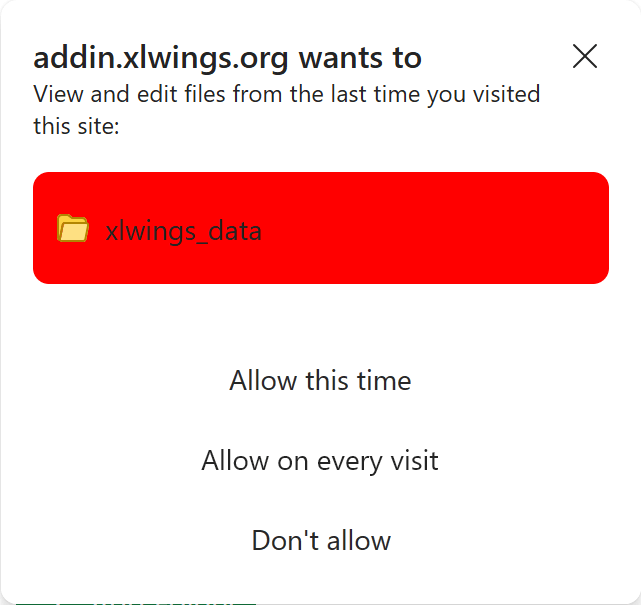
Make sure to select Allow on every visit and you shouldn’t have to re-authorize until the Office cache is cleared.
Note
As with imported files, the mount configuration is stored in the Office cache and will be lost whenever the cache is cleared, in which case you’ll have to re-mount the folder.
File system layout
Your Python code sees two directories:
/datais the working directory and the location that backs Import/Export. Relative paths therefore read and write under/data:df.to_csv("output.csv") # same as /data/output.csv
Files written this way survive a restart of xlwings Lite and show up under Import/Export for download (or, if you mounted a local folder at
/data, they land directly in that folder)./srcholds the source files from the editor’s file menu (e.g.,main.pyor aconfig.jsonyou created there). To read one of them from code, use the following approach (works in scripts, modules, and notebooks):from pathlib import Path config = (Path(__file__).parent / "config.json").read_text()
This resolves to
/src/config.json, so the literal path works too.Note
Unlike
/data, source files are stored in the workbook itself, so they travel with it when you share it. They must be text files (e.g.,.py,.json,.csv,.md) — binary files like Excel workbooks or images can’t be stored under/src.