xlwings Lite
xlwings Lite lets you automate Excel and build native custom functions in Python.
Free, cross-platform, and without installing Python.
 Microsoft Marketplace · ★★★★★ 5.0 · 43 ratings
“I have used lots of ways to have user functions in Excel over the years: VBA, C and C++ XLLs and DLLs. […] xlwings Lite has basically fulfilled all my wishes. It’s like having the flexibility and ease of VBA but in a language with so much more potential. And this app is free!”
— Antoine Marmoiton, Microsoft Marketplace review
Install from the Office add-in store. It’s free for personal and commercial use, with no registration or login required. See Installation for step-by-step instructions or watch the Video Walkthrough.
After installation, main.py already contains sample code, so you can get started right away:
@func
def hello(name):
    return f"Hello {name}!"
Type =HELLO("World") into a cell and you’ll get back Hello World!—a native Excel custom function, written in Python.
@script
def hello_world(book: xw.Book):
    book.sheets.active["A1"].value = "Hello World!"
Click on the green Run Hello World button (or hit F5).
Why xlwings Lite
No Python installation required: Python runs via Pyodide inside the browser runtime used by modern Office add-ins.
Cross-platform: Works on Windows, macOS, and Excel for the web. It’s compatible with Microsoft 365 as well as perpetual versions of Office from 2021 onward.
No service quotas: There are no execution quotas, throttling, or per-user usage limits.
Built on a proven foundation: xlwings Lite is based on xlwings, the open-source package that has been around since 2014.
What you can do
Custom functions: Define native user-defined functions (UDFs) that you call directly from a cell.
Scripts: Automate Excel (e.g., insert a sheet or color a cell) by running Python scripts at the click of a button.
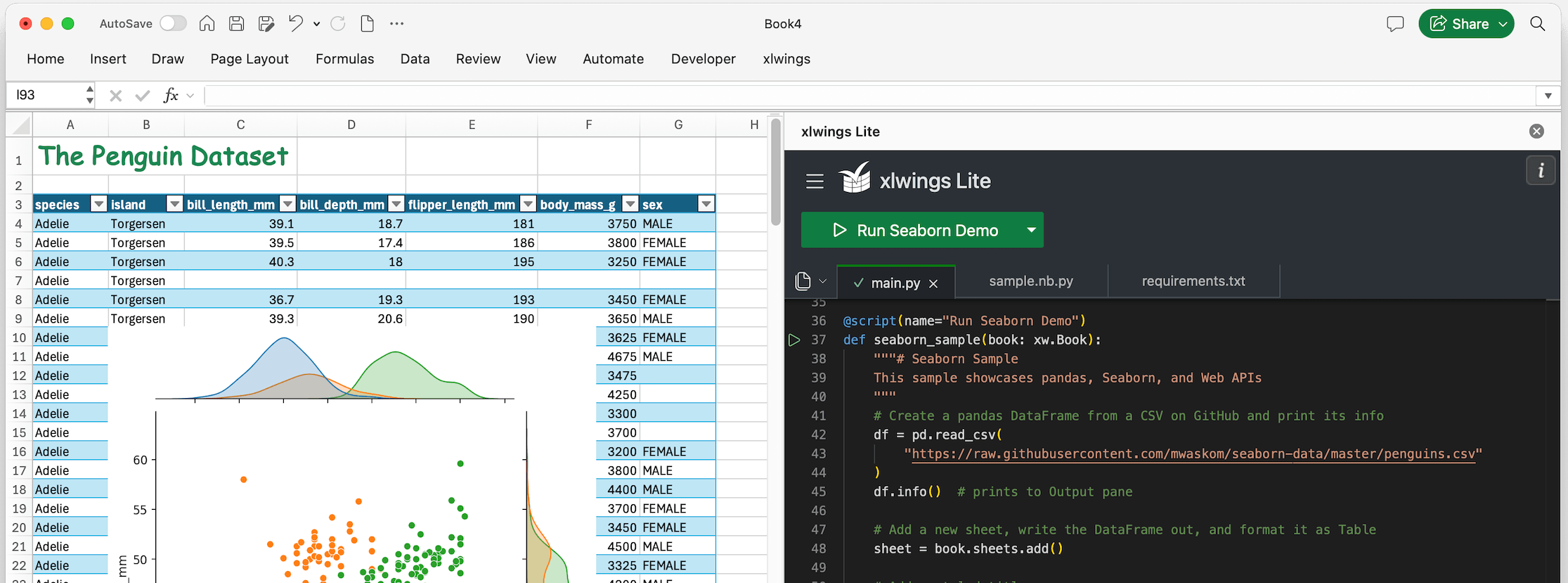
Notebooks: As in Jupyter notebooks, write and run code cell by cell, with support for modern plotting libraries such as Matplotlib, seaborn, Plotly, Bokeh, and Altair.
Install packages: Use libraries like pandas, Polars, DuckDB, or your own Python packages.
Web API access: Fetch data directly from APIs.
App Mode: Turn a workbook into an app for end users. The code editor is hidden and each script becomes a button with auto-generated form fields.
Developer experience
VS Code editor: xlwings Lite uses the same editor that powers VS Code, including many of its familiar keyboard shortcuts.
Testing with pytest: A built-in pytest runner lets you write automated tests for your Python code as well as for the workbook itself.
Personal modules: Share Python files and packages across all your workbooks, similar to VBA’s
Personal.xlsb. You can also track them with Git.Wingman AI assistant: Write and explain code with a built-in AI chat, plus the
=WINGMAN()custom function. Bring your own API key for Claude, Gemini, OpenAI, or a self-hosted model.Standard Python files: Organize your code using regular
.pymodules, functions, and imports.A path beyond WebAssembly: If you outgrow the browser’s Limitations, you can reuse the core xlwings API with the local version of xlwings or xlwings Server, usually with little or no code changes.
Privacy, security & distribution
Local-first: Python runs on your own computer.
Code you control: Workbook code runs only after you approve it, with a view-only option for inspecting untrusted workbooks.
Easy distribution: Python code is stored inside the workbook, making the xlwings Lite add-in the only requirement to run your workbook.
Self-hosting: For maximum control, deploy xlwings Lite on your own infrastructure behind your firewall.