App Mode
App Mode turns the xlwings Lite task pane into an app for end-users by hiding the code editor and showing one button for each script, rendering docstrings, and showing the available custom functions.
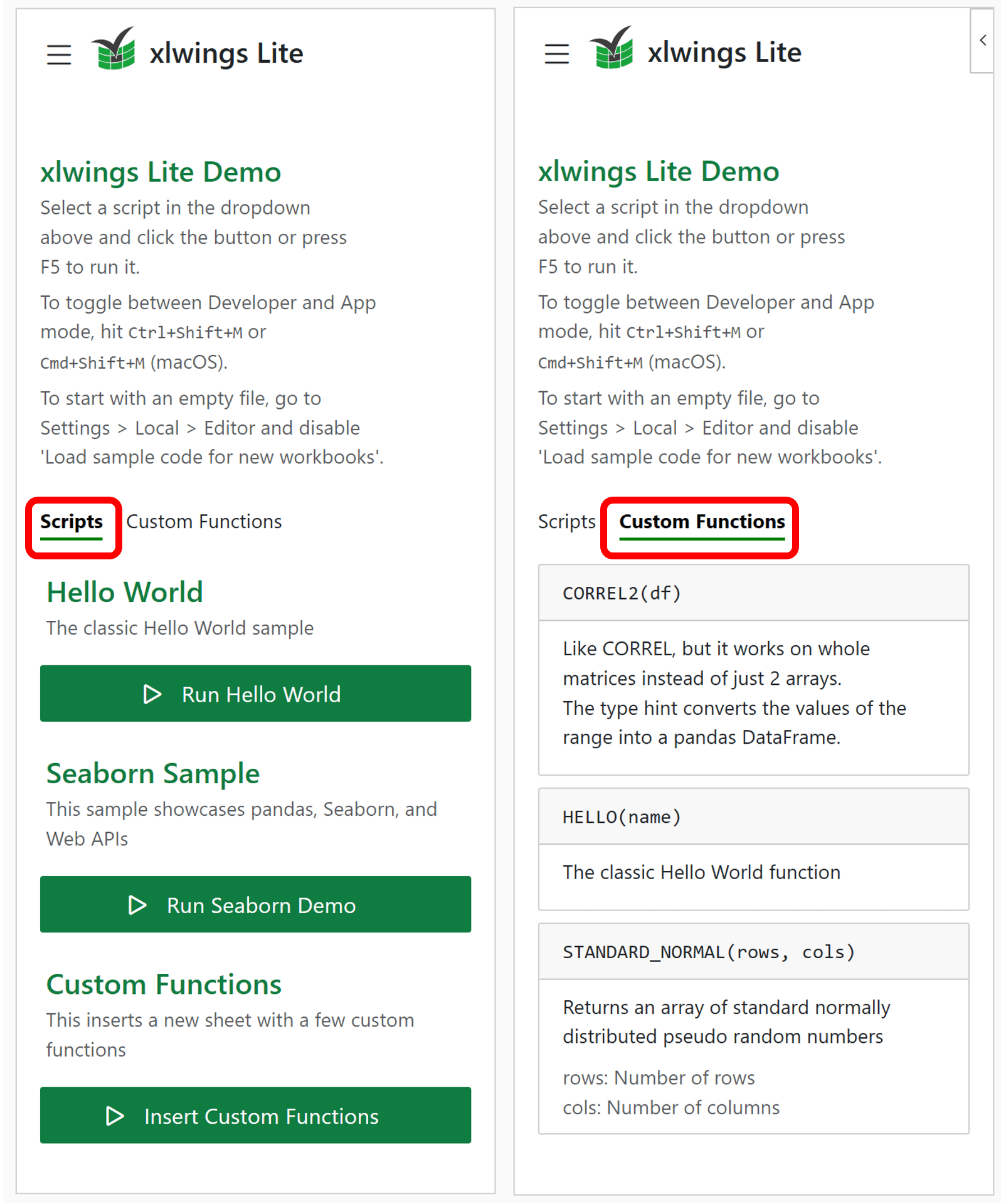
The following screenshot shows how the default code samples look in app mode (scripts tab on the left, custom functions tab on the right):
Toggling between Developer Mode and App Mode
You can toggle between Developer Mode and App Mode via the Ctrl+Shift+M (Windows) or Cmd+Shift+M (macOS) keyboard shortcuts. Alternatively, go to Settings > Workbook > App Mode and click Activate App Mode. The setting is saved in the workbook, so it stays in App Mode the next time the workbook is opened.
Form fields
If a script accepts arguments in addition to book: xw.Book, App Mode renders a form element for each one above the script’s button. The type hint decides which element is used — a text box for str, a number box for int/float, a checkbox for bool, a dropdown for Literal[...], a date picker for datetime.date, and a date and time picker for datetime.datetime. Arguments without a type hint get a text box and are passed as strings. See Script arguments for the full table and an example.
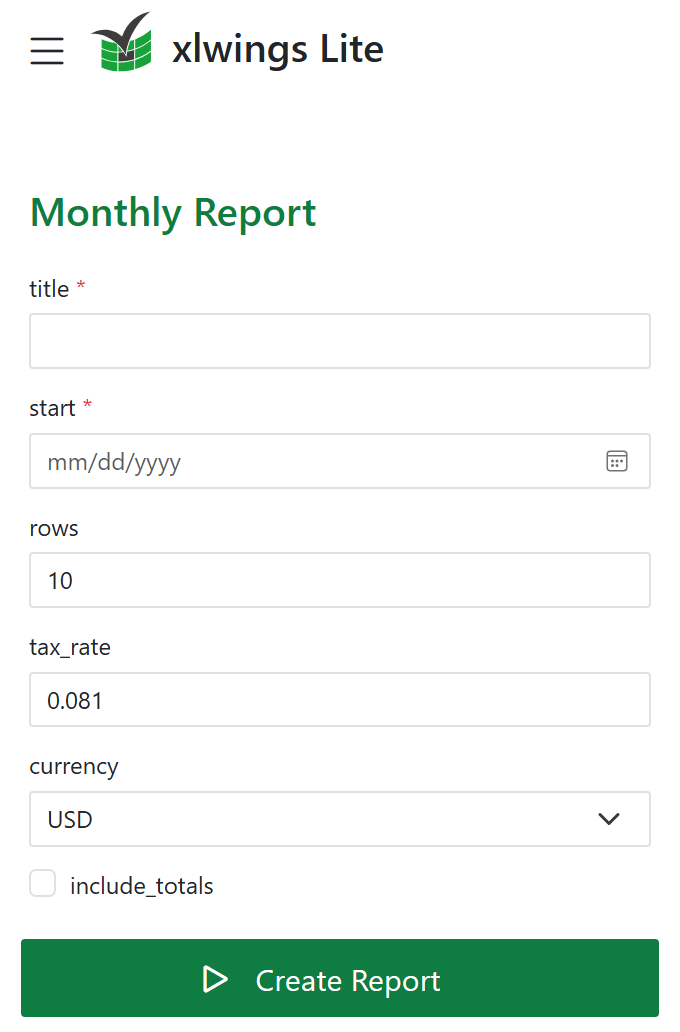
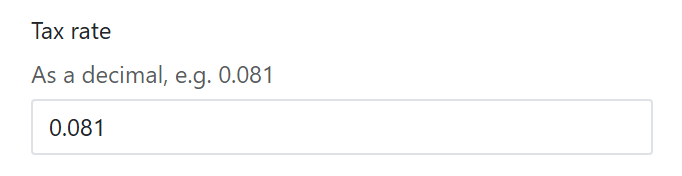
Fields are labeled with the parameter name unless the script gives them a friendlier label via typing.Annotated, which can also add help text above the field — see Labels and help text.
Arguments without a default value are marked with a red asterisk and must be filled in before the script runs; if one is missing, App Mode shows an error message instead of running the script. Arguments that have a default are prefilled in the form element.
Showing the Output pane
By default, App Mode hides the Output pane. If your scripts print progress or results that end-users should see, go to Settings > Workbook > App Mode and enable Show the Output pane. Like the mode itself, this setting is saved in the workbook, so it travels with the file.
How does it work?
Module, @script, and @func docstrings are rendered as Markdown descriptions in App Mode.
This is how main.py looks that produces the above screenshot:
"""
# xlwings Lite Demo

Select a script in the dropdown
above and click the button or press
F5 to run it.

To toggle between Developer and App
mode, hit `Ctrl+Shift+M` or
`Cmd+Shift+M` (macOS).

To start with an empty file, go to
Settings > Local > Editor and disable
'Load sample code for new workbooks'.
"""

import datetime as dt

import numpy as np
import pandas as pd
import seaborn as sns
import xlwings as xw
from xlwings import arg, func, script


@script(name="Run Hello World")
def hello_world(book: xw.Book):
    """# Hello World
    The classic Hello World sample"""
    ...


@script(name="Run Seaborn Demo")
def seaborn_sample(book: xw.Book):
    """# Seaborn Sample
    This sample showcases pandas, Seaborn, and Web APIs
    """
    ...


@script(name="Insert Custom Functions")
def insert_custom_functions(book: xw.Book):
    """# Custom Functions
    This inserts a new sheet with a few custom functions
    """
    ...


@func
def hello(name: str):
    """The classic Hello World function"""
    return f"Hello {name}!"


@func
@arg("rows", doc="Number of rows")
@arg("cols", doc="Number of columns")
def standard_normal(rows, cols):
    """Returns an array of standard normally distributed pseudo random numbers"""
    ...


@func
def correl2(df: pd.DataFrame):
    """Like CORREL, but it works on whole matrices instead of just 2 arrays.
    The type hint converts the values of the range into a pandas DataFrame.
    """
    ...
Trust prompt in App Mode
When a workbook in App Mode is opened, the trust prompt shows only a single Trust and Continue button.
A power user who wants to inspect the code before trusting can press Ctrl+Shift+M / Cmd+Shift+M on the trust prompt to reveal the Don’t Trust (View Only) option, which opens a read-only editor without running any Python code.