Dependencies
This document describes how to install, uninstall, and update Python packages. Since xlwings Lite runs Python via Pyodide, a Python distribution for WebAssembly (Wasm), there are certain packages that can’t be installed, as explained under Compatible packages. To keep package versions stable across restarts, Pyodide 314.0.0+ is required.
Installing and uninstalling packages
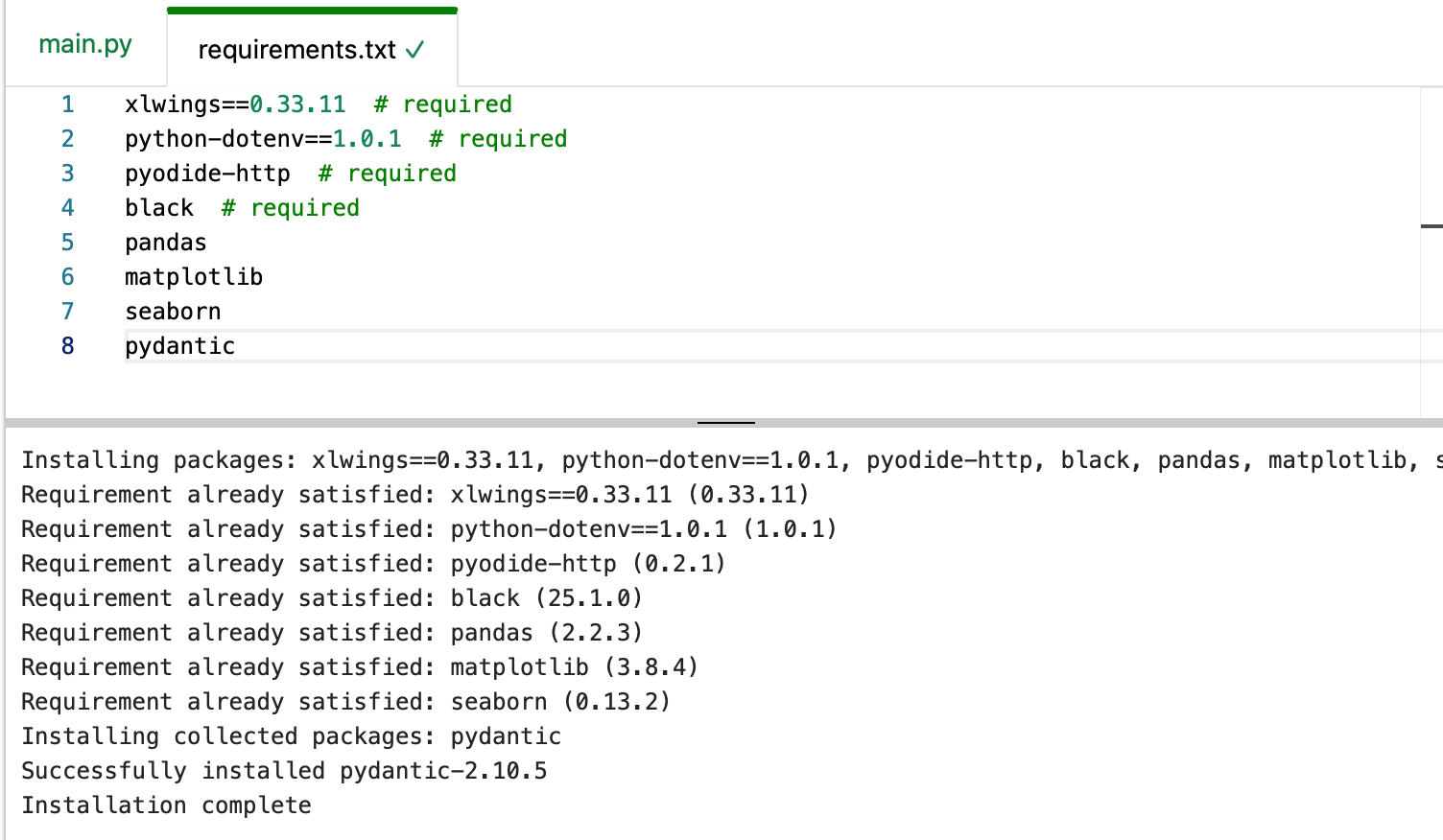
To define your dependencies, open requirements.txt and add or remove your Python packages there. Whenever you edit the file, a notice appears telling you to restart xlwings Lite to apply the change:
Since xlwings Lite records the exact versions it installs in requirements-pinned.txt, you usually don’t want to pin an exact version in requirements.txt. What you might want to do is to specify an upper bound, e.g.,
xlwings<1.0.0
requirements-pinned.txt
xlwings Lite records the exact versions of all packages installed from requirements.txt in the auto-generated file requirements-pinned.txt:
# Generated by xlwings Lite
# source sha256: 7f3a...
numpy==2.0.2
pandas==2.2.3
On every subsequent restart, those versions are reinstalled. Your workbook therefore keeps working with the same package versions it was built and tested against, even if you never pinned anything yourself. The file includes your top-level dependencies from requirements.txt as well as dependencies of your dependencies (“sub-dependencies”).
requirements-pinned.txt records package names and versions, but not wheel URLs or hashes. It keeps versions stable; it isn’t a complete lockfile that identifies the exact wheel artifacts.
You normally don’t edit requirements-pinned.txt directly. Instead, changes to requirements.txt are reflected in requirements-pinned.txt automatically after a restart.
Attention
Pyodide 0.27.5 can’t enforce the versions in requirements-pinned.txt. With 0.27.5, dependencies are resolved from requirements.txt and requirements-pinned.txt is refreshed after every startup so it serves as an informational record only, showing the packages that are currently installed. We therefore recommend upgrading to Pyodide 314.0.0+ by going to Settings > Workbook > Pyodide Version. Before doing so, make a backup copy of your workbook: the upgrade may change dependency versions, including major versions such as pandas, which is updated from v2 to v3.
If you need to stick to Pyodide 0.27.5, you can manually copy the content from requirements-pinned.txt and paste it into requirements.txt as a workaround.
Updating packages
Open either the requirements.txt or requirements-pinned.txt tab and use the following buttons:
Update all: re-resolves everything from
requirements.txtand updatesrequirements-pinned.txtaccordingly.Update xlwings: updates only xlwings while keeping all other packages at their recorded versions.
Both buttons will restart xlwings Lite.
Note
These actions update versions recorded in requirements-pinned.txt. They never change or override exact pins written in requirements.txt. Edit requirements.txt directly to change an exact pin.
Changes are reported in the Output pane after the restart so you always see which versions moved. For example, you’d see the following output if pandas is upgraded from v2.2.3 to 3.0.2:
Updated requirements-pinned.txt
- pandas==2.2.3
+ pandas==3.0.2
Attention
Both buttons require Pyodide 314.0.0+. On Pyodide 0.27.5, versions are re-resolved from requirements.txt on every startup anyway, so neither action applies.
If a version recorded in requirements-pinned.txt isn’t available—or conflicts with a specifier you added to requirements.txt—xlwings Lite tells you so and keeps your file rather than silently replacing it. A notice offers Try to fix dependency version conflicts, which resolves fresh versions from requirements.txt and records the result.
Compatible packages
Pyodide first checks PyPI for a compatible package in the wheel (.whl) format. Compatible wheels are either
Pure Python packages
Packages built for Pyodide’s WebAssembly platform, i.e. wheels tagged
pyodide_<abi>_wasm32(only for Pyodide 314.0.0+)
If it doesn’t find a compatible wheel on PyPI, Pyodide checks their own repository where they host compatible wheels for many popular packages that aren’t pure Python.
If there’s no compatible version of the package, you could build it yourself, see Creating a Pyodide package. Note, however, that there are a few packages that are hard to build and therefore currently aren’t available for Pyodide, e.g., PyTorch.
Web locations
If packages are on a web server, you can reference them with their URL in the requirements.txt file:
https://myserver.com/mypackage-x.x.x-py3-none-any.whl
The server must allow cross-origin requests (CORS), and the last component of the URL must be a valid wheel filename. Keep such URLs in requirements.txt: that line is what locates the wheel. The package still appears by name and version in requirements-pinned.txt, but it is the URL that installs it.