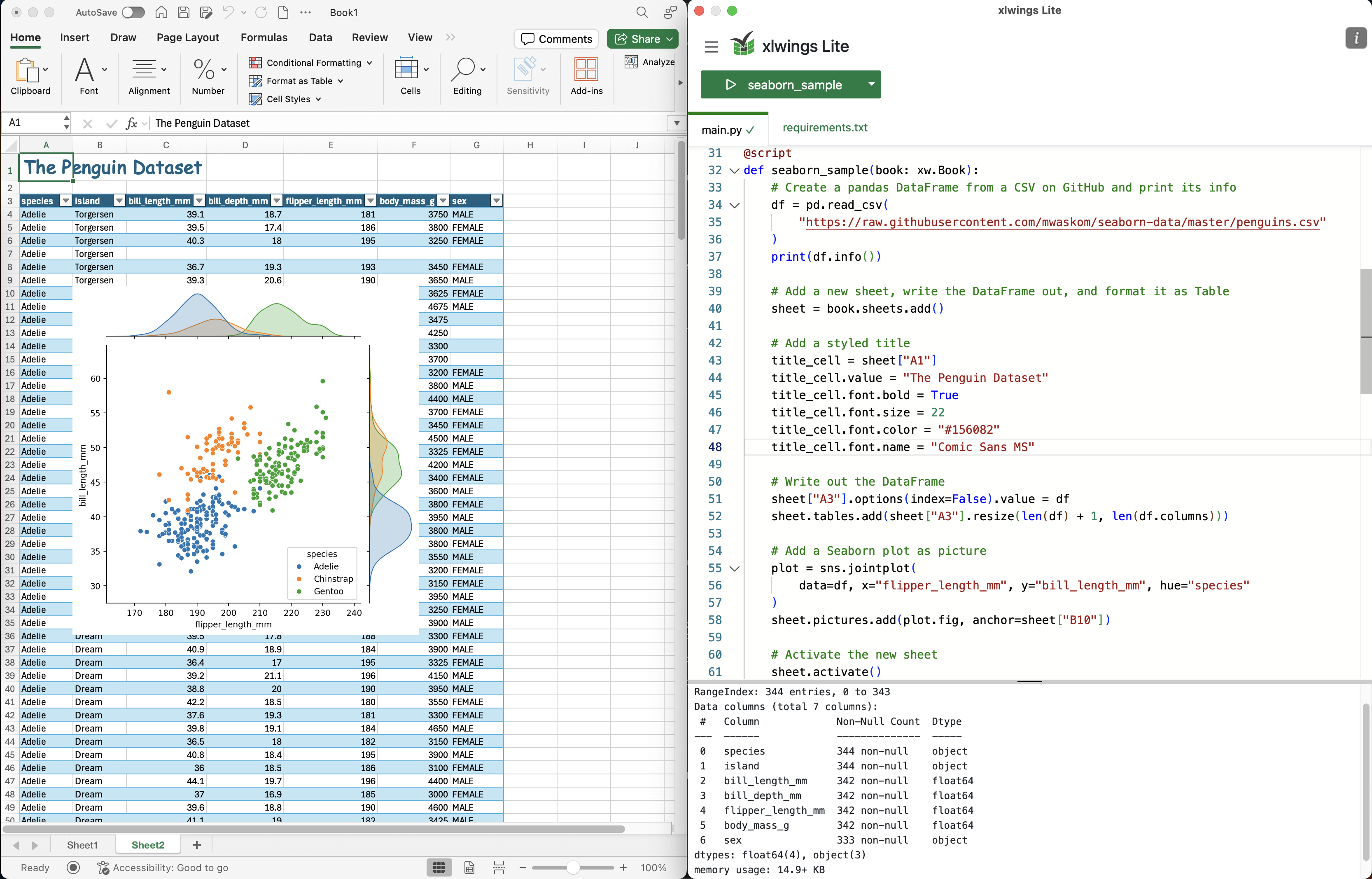
Editor
xlwings Lite uses the same editor as VS Code. This means that many of its familiar features are available.
AutoSave
When you’re writing Python code or editing the requirements.txt file, changes are automatically written to the workbook. The active tab shows this with a green checkmark. This makes sure that when you run a script or execute custom functions, you’re always using the latest version of the code as shown in the editor.
If you are storing the working on OneDrive/SharePoint with AutoSave enabled, everything is automatically and continuously saved to the workbook.
However, if you have AutoSave disabled, changes to the Python code and the requirements.txt file are only saved when you save the workbook.
Keyboard shortcuts
Many of the default VS Code keyboard shortcuts are available. A few examples:
Action |
Windows/Linux |
macOS |
|---|---|---|
Move a line up or down |
|
|
Delete an entire line |
|
|
Insert multi-cursor above/below |
|
|
Lint and format code with Ruff |
|
|
Run selected script |
|
|
Increase/decrease editor font size |
|
|
Auto Completion
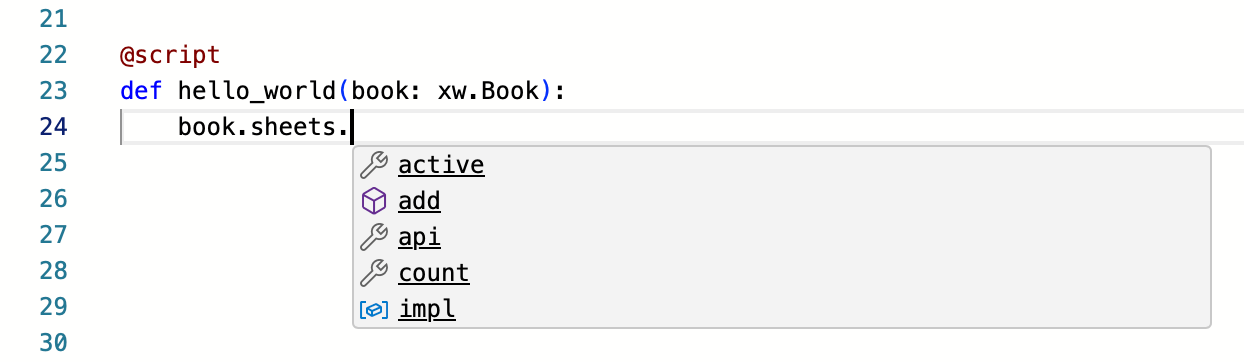
Autocompletion works similarly to VS Code:
Output pane
The output pane at the bottom of the editor can be vertically resized:

Anything that you print() will show up in the output pane.
Standalone editor
For that extra VBA feeling, you can drag the xlwings Lite add-in out of Excel by grabbing it in the gray title bar and pulling it out: