Getting Started
xlwings Lite is an Excel add-in that you install from the Office add-in store. It’s free for personal and commercial use, with no registration or login required.
Prerequisites
All you need is a supported version of Excel. There’s nothing else to install, as Python runs inside the add-in.
Microsoft 365
Office 2021 or later
Microsoft 365
Office 2021 or later
Note that the version of macOS needs to be Ventura (macOS 13) or later.
Excel on the web is supported as long as you’re accessing it with a reasonably recent version of a modern browser.
It even works with the free version of Excel
Installation
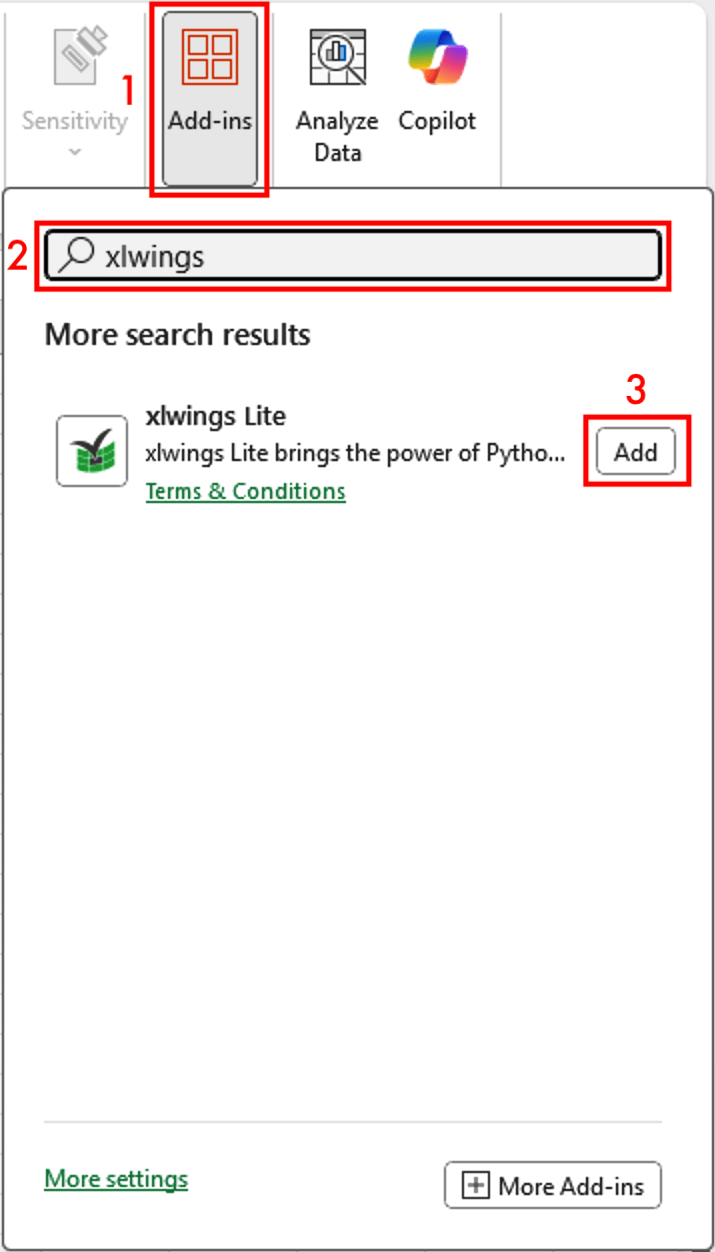
Click on the
Add-insbutton in Excel. Usually, it is located on theHometab, but if you are using an older version of Excel, it could be on theInserttab.Search for
xlwingsClick on
Addto install.
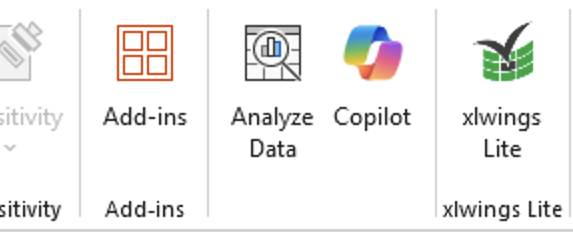
This will add an xlwings Lite button at the right end of the Home tab and open the xlwings Lite editor on the right-hand side of Excel. If the editor doesn’t show or if you closed it, you can reopen it anytime by clicking the xlwings Lite button on the Home tab:
After installation, main.py already contains sample code, so you can get started right away: type =HELLO("World") into a cell to call a Python custom function, or click the green Run Hello World button (or hit F5) to run a script.
Video walkthrough
Corporate environments
In corporate environments, your Excel add-in store may be blocked. In this case, ask your IT or Office administrator to install xlwings Lite from the Office 365 Admin Center. Alternatively, your company may prefer to self-host xlwings Lite (see Self Hosting).
Uninstalling xlwings Lite
To uninstall xlwings Lite, start again by clicking on the Add-ins button, then click on More Add-ins at the bottom of the appearing menu. Under Manage your Apps, you’ll find xlwings Lite. Click on the three dots to the right and select Remove.
On older versions of Excel, you have to go to My Add-ins instead of Manage your Apps, then hover over xlwings Lite, which makes the three dots appear.
Next steps
Custom Functions: Define native custom functions (user-defined functions) that you call directly from a cell.
Scripts: Automate Excel by running Python scripts at the click of a button.
Notebooks: Write and run code cell by cell, as in Jupyter notebooks.
Dependencies: Learn how to install 3rd party libraries like pandas, Polars, or DuckDB.