Plugins
A plugin is a regular Python package that automatically registers scripts and custom functions when added to requirements.txt, so the workbook itself needs no code. Plugins let you maintain shared functionality in one place, version it like any other Python package, and reuse it across workbooks.
Plugins work in any xlwings Lite installation. With the self-hosted version, you can also publish plugins to an internal registry directly from xlwings Lite and share them across your organization.
How to use a plugin
To use a plugin, add its package name to the workbook’s requirements.txt. For example, add xlwings-sqlookup to try the xlwings-sqlookup plugin. Plugins are marked with a Plugin badge:
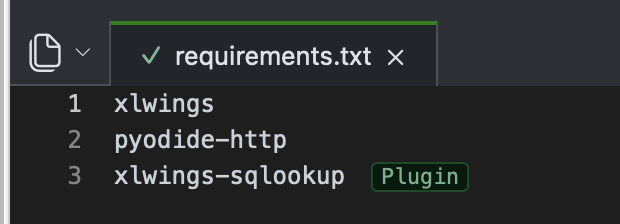
After restarting xlwings Lite, you’ll have access to the =SQLOOKUP() custom function in Excel, which lets you query worksheet data using SQL.
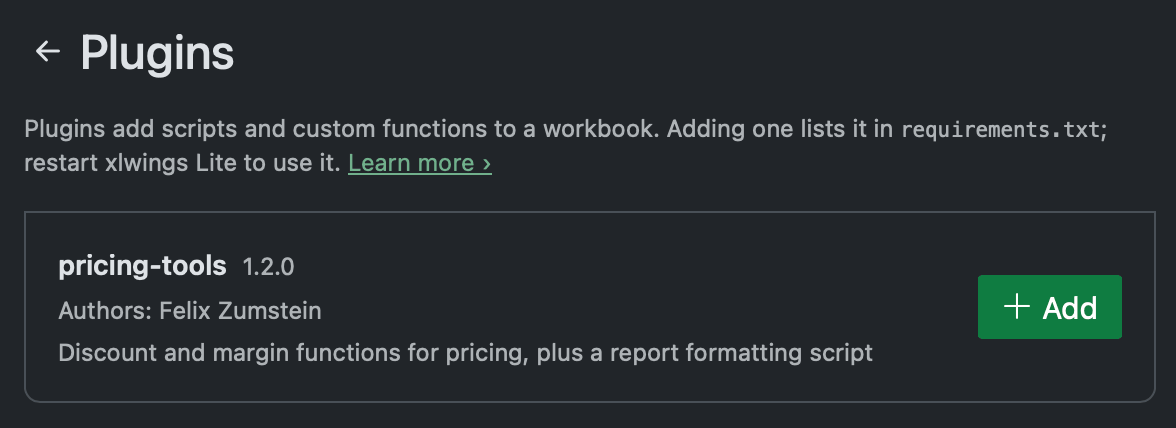
On a self-hosted instance, the Plugins view in the main menu lists internally published plugins. Click Add to add a plugin to the workbook’s requirements.txt, then restart xlwings Lite:
Building a plugin in xlwings Lite
You can turn a workbook’s scripts and custom functions into a plugin without leaving xlwings Lite. xlwings Lite packages the source files into a wheel using hatchling. The packages in the workbook’s requirements.txt become the plugin’s dependencies.
To build a plugin:
Add the plugin’s name and version under
[project]in the workbook’spyproject.toml:[project] name = "my-plugin" version = "1.0.0" description = "A plugin for xlwings Lite" authors = [{ name = "Pricing Team" }]
descriptionandauthorsare optional; the Plugins view shows them. You can add other standard fields such aslicenseorreadme.In the Source files menu (to the left of the editor tabs), click Build Plugin.
The wheel, for example
my_plugin-1.0.0-py3-none-any.whl, appears under Files > Import/Export (see Files). The Output pane shows the build result, including any errors or warnings.To test the plugin, add
/data/my_plugin-1.0.0-py3-none-any.whlto another workbook’srequirements.txtand restart xlwings Lite. To share it, publish it (requires self-hosting), or download the wheel and upload it to a package index such as PyPI.
To release a new version, increase version and build again.
Reading non-Python source files
Source files that aren’t Python files, such as CSV or JSON files, are included in the plugin’s package. Inside a plugin, these source files live in the package, not in the working directory, so open("rates.csv") or pd.read_csv("rates.csv") won’t find them. Locate them relative to the module instead, which works both in the workbook and in the plugin:
from importlib.resources import files

import pandas as pd

df = pd.read_csv(files(__name__) / "rates.csv")
Publishing a plugin (self-hosted)
On a self-hosted instance, Publish Plugin in the Source files menu builds the plugin and then adds it to the internal plugin registry. Other users can then add the plugin simply by clicking Add in the Plugins view.
Who can publish: Publish Plugin only appears if your administrator has enabled publishing (see plugin configuration). Depending on the setup, you can publish using your Microsoft 365 sign-in or a publish token from your administrator. Store the publish token as the environment variable
XLWINGS_PLUGIN_PUBLISH_TOKENwith the Local scope (see Environment Variables). Never use the Workbook scope for the token, as this would share it with everyone who opens the workbook.Versions: A published version can’t be replaced. To publish a change, increase
versioninpyproject.tomland publish again.Names: A plugin can’t use the name of a package your administrator added to the package index. The internal package index takes precedence over PyPI, so a published plugin is installed even if PyPI has a package with the same name.
Secrets: Everyone who has access to the self-hosted xlwings Lite instance can download the plugin and read its files. Don’t put passwords, API keys, or other secrets into a plugin; use environment variables or a backend instead.
Building a plugin outside xlwings Lite
To maintain a plugin in its own repository, for example with version control and tests, build it as a regular Python package. For a complete example, see the xlwings-sqlookup plugin.
Create the package with uv init --library my-plugin, then declare its modules as entry points in the xlwings_lite group of its pyproject.toml:
[project]
name = "my-plugin"
version = "1.0.0"
requires-python = ">=3.12"
dependencies = ["xlwings>=0.36.13"]

[build-system]
requires = ["uv_build>=0.13.4,<0.14.0"]
build-backend = "uv_build"

[project.entry-points.xlwings_lite]
main = "my_plugin.main"
functions = "my_plugin.functions"
Declare xlwings as a dependency with a lower bound set to the earliest version that supports the features your plugin uses. Workbooks always install xlwings, so the plugin can import it without declaring the dependency. However, the lower bound ensures that an incompatible workbook reports a version conflict at startup instead of failing when the plugin runs. Avoid exact pins such as xlwings==0.37.5 and upper bounds in dependencies: they constrain every workbook that uses the plugin and can prevent those workbooks from updating their dependencies.
uv init sets requires-python to the Python version on your machine. Lower it to the oldest Python version your plugin supports, such as >=3.12 for Pyodide 0.27.5. Otherwise, workbooks running an older Python version can’t install the plugin.
The name on the left (main or functions) is a label that xlwings Lite includes in error messages, together with the package name. Name it after the module so you can tell which module failed to load. The value on the right must be the module’s import name, such as my_plugin.main. To expose several modules, add one entry point per module.
The plugin must be pure Python or built for Pyodide (see Compatible packages). Build a pure Python package with uv build or python -m build.