xlwings Wingman
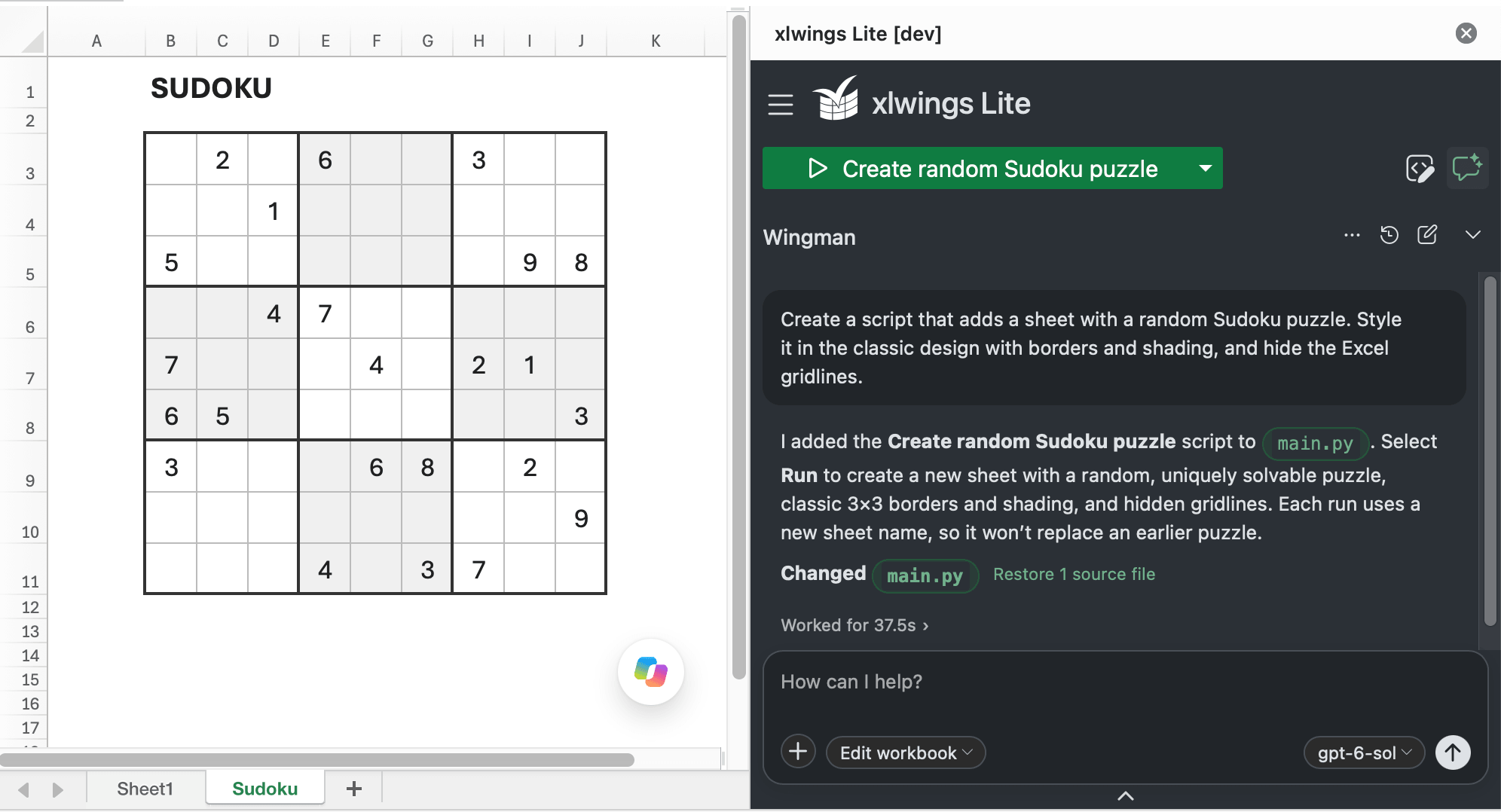
xlwings Wingman is a coding agent for Excel. Like other AI agents, it can change your workbook directly, for example, create PivotTables, audit workbooks, or build dashboards with native formulas. What sets Wingman apart is that it writes reusable Python code: scripts, custom functions, and notebooks that are saved in your workbook. You can read the code, rerun it without using AI tokens, and share it with the workbook. Wingman can process large datasets and whole folders of files locally in xlwings Lite, without uploading every file to the AI model. You can also connect to self-hosted LLMs.
Getting started
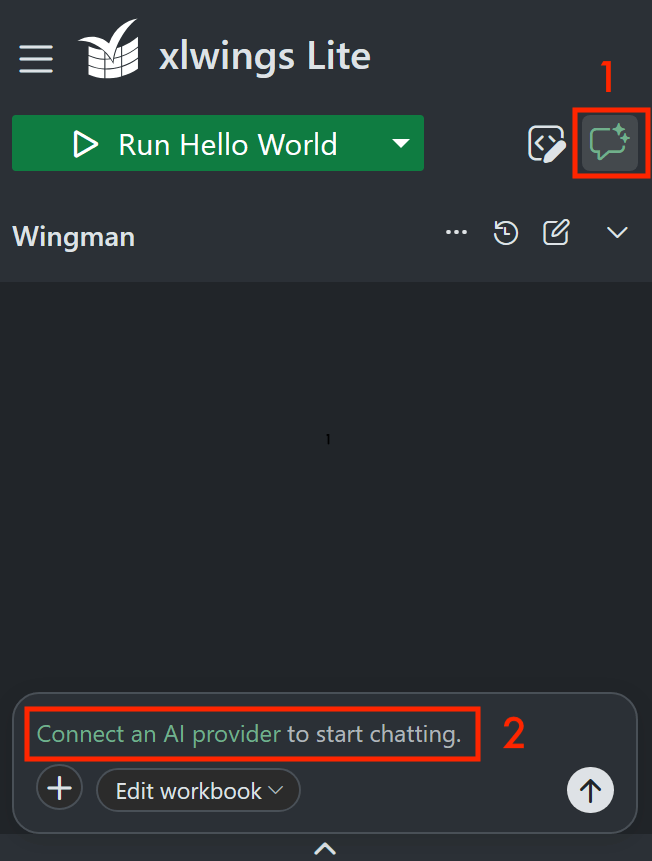
Click the Wingman icon.
Click Connect an AI provider and enter your API key from Anthropic, OpenAI, Google, or OpenRouter, see Settings for more details.
Now give it a try, for example, ask:
Create a custom function that converts temperatures between Celsius, Fahrenheit and Kelvin. Then add a new sheet with examples of how to use it and switch to it.
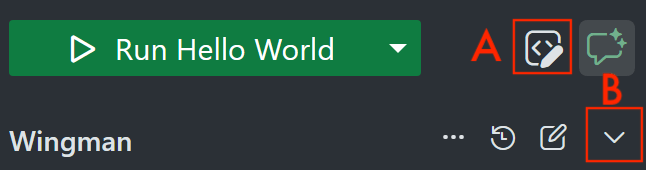
To see the code of the custom function, switch back to Editor mode by clicking the corresponding icon (A) or minimize Wingman (B):
To hide the Wingman chat from end-users, put the workbook in App Mode.
More prompt examples
Here are a few prompt examples of what’s possible with Wingman:
Write a custom function =FX(amount, from, to) that converts currencies with the latest ECB rates from data-api.ecb.europa.eu, and add a sheet with examples and switch to it.
Write a script that I can rerun every month that combines the CSV files under /data into a new sheet and calculates basic statistics using pandas.
Write a script that adds a sheet with a sample portfolio of five assets (weights, expected returns, volatilities and a correlation matrix), runs a 100,000-path Monte Carlo simulation with NumPy on those inputs, and writes the one-year 95% VaR and a histogram of the simulated returns to a new sheet. Make the script read the inputs from the sheet so I can change them and rerun it.
Write a notebook that recreates the calculation on the active sheet in Python and flags any issues.
Use DuckDB to read NOAA’s daily maximum temperatures for New York City’s Central Park from s3://noaa-ghcn-pds/parquet/by_station/STATION=USW00094728/ELEMENT=TMAX/*.parquet. Put the monthly averages for 2024 into a table in degrees Celsius.
Turn the workbook into a PowerPoint presentation with the sheet name as title and a summary of the sheet as slide content.
Create unit tests for the code in main.py.
Access modes
The Access dropdown at the left of the chat box decides what Wingman may change:
Access |
Description |
|---|---|
Inspect |
Wingman can read your workbook and files, and answer questions. It can run Python, but doesn’t change your workbook or files. |
Edit code |
Wingman can also create and edit source code. You run the code manually to change the workbook or create data files. |
Edit workbook (default) |
Wingman can also change the workbook and create or modify data files directly from chat. |
Under Edit workbook, Wingman makes a requested change directly in your workbook. If you want code you can reuse, ask for it explicitly, e.g., “Write a script that…”, “Create a custom function that…” or “Create a notebook that…”.
When Wingman edits the workbook directly, it runs a temporary Python script in the background. To see it, click the Applied workbook changes entry in the chat. From there, you can click Save script to add it to your source files. Alternatively, simply ask Wingman to create a script.
To undo Wingman’s latest change to cell values, formulas or source files, click Restore in the chat. Formatting, charts and other changes can’t be restored this way.
Working with files
For files that you only want to use once, simply drag and drop them on the chat or select Attach files from the + menu in the chat box. Attached files are available until you clear the chat or xlwings Lite reloads.
Wingman can also use the files in /data (see Import/Export) and, with desktop Excel on Windows, in your Local Folders.
Supported file types are:
Text files such as CSV, JSON, TXT and Markdown
Parquet files
Excel files (
.xlsx,.xlsm,.xlsb,.xls)PDF files, including scanned pages if your model accepts images
Word (
.docx) and PowerPoint (.pptx) filesEmails (
.eml). For.msgfiles, save them as EML or PDF first.Images (PNG, JPEG, GIF, WebP, BMP), including screenshots pasted into the chat, if your model accepts images
Wingman can also read the text in images and scanned PDFs, e.g., to turn a photographed table into an Excel range. The AI model does the text recognition, so a saved script can’t repeat it: you have to ask Wingman again for each new file.
For other file formats, Wingman can write a Python script that reads it with a suitable package.
Custom instructions
Add standing preferences, such as your house colors, under Settings > Local > Wingman. They apply to the chat in every workbook.
Security & privacy
Wingman sends your prompts, the workbook content and code it reads, and the output of the Python it runs to the AI provider you configured. See Wingman security for details.
The =WINGMAN() custom function
Wingman is also available as a custom function. It is a drop-in replacement for =COPILOT(), which Microsoft removed from Excel after testing it in the Beta Channel. It is off by default: turn it on under Settings > Local > Wingman and pick the model it should use. Pass it an instruction followed by the cells it should work on, e.g., to classify customer feedback in column A, enter the following in B2 and fill it down:
=WINGMAN("Classify this customer feedback as positive, neutral or negative:", A2)
When the feedback in a row changes, its result updates. Arguments can be text, cells or ranges, and the result can be a single value or a table that spills across cells. The function only sees the text you pass in: it can’t access your workbook or code, and it doesn’t remember previous calls.
Important
Every recalculation sends another paid request to your provider. A formula filled down over many rows, or one that references frequently changing cells, can add up quickly.